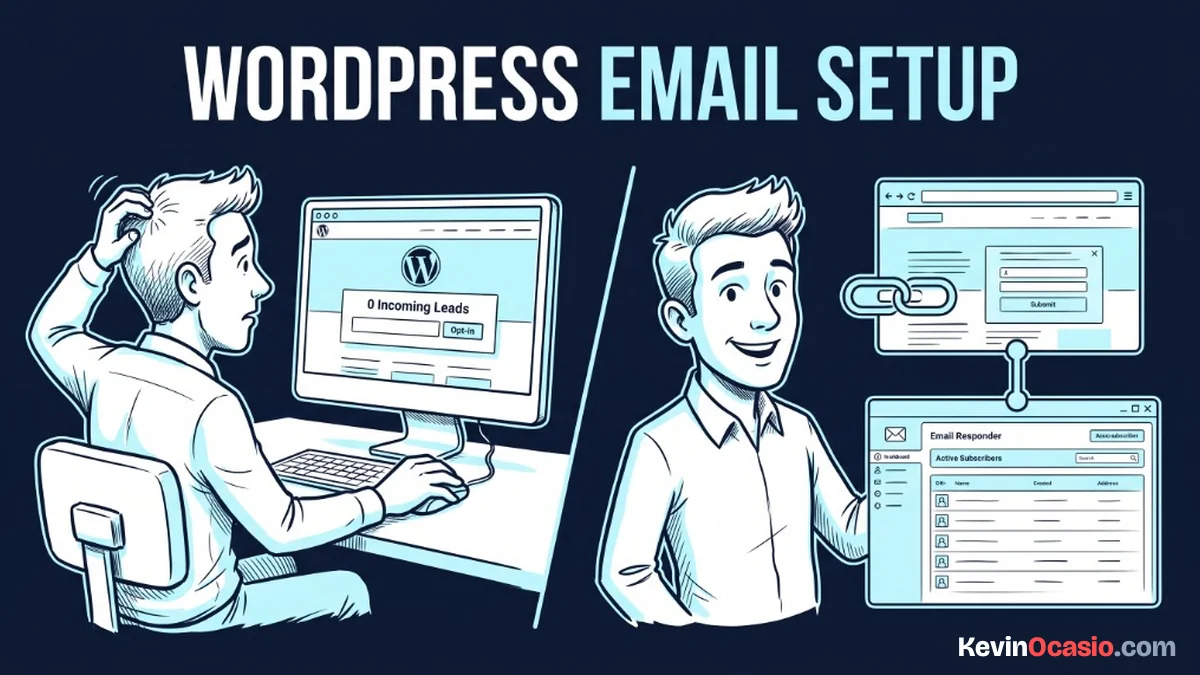
Every time someone enters their name and email on your website, that signup is a real person waiting for your reply. If your hosting server tries to send that note through basic mail, it’ll often get lost on the way.
The Short Version
- Offload all subscriber emails to an autoresponder service so your messages reach the inbox instead of spam.
- Use direct API connections or clean form code instead of heavy plugins that slow down mobile visitors.
- Test your opt-in flow right away with a spare email address to confirm that tagging and delivery fire without a hitch.
Jump to Section
- Why Your Web Host Should Never Send Your Marketing Emails
- Three Ways to Link Your Opt-In Forms to Your Email List
- How to Connect WordPress to Email Autoresponder Accounts via Direct API
- Common Connection Mistakes That Break Lead Capture
- Test Your New Subscriber Flow from Opt-In to Inbox
- Frequently Asked Questions About Connecting WordPress to an Email Autoresponder
Why Your Web Host Should Never Send Your Marketing Emails
When you start a new site, it feels natural to let your web host deliver everything. Your host stores your site files, so people assume it should send emails too. In reality, basic web servers are built to show pages to visitors. They aren’t built to handle inbox delivery.
Sending broadcasts from a standard hosting account triggers shared IP deliverability issues that push your notes straight to junk. Your site shares its server address with hundreds of other sites. If one neighbor sends spam, big mail services block the whole server address for everyone on that machine.
Shared web servers also put hard hourly caps on outgoing messages. Once your list grows past a few hundred readers, your host will pause or kill your mail queue during a live send. When you’re building an online business with WordPress, you can’t risk losing sales messages to strict server caps.
Three Ways to Link Your Opt-In Forms to Your Email List
You have three common paths to connect your signup forms to your email marketing tool. Each method handles the data handshake differently. Picking the right setup keeps your site fast and your list clean.
Direct API keys offer the cleanest link between your site and your audience. You paste a private token from your email provider into your form settings. The two platforms talk quietly behind the scenes without adding clutter to your pages.
Raw HTML code gives you another quick path that avoids extra plugins. You copy a plain code block from your account dashboard and paste it right into your page editor. It runs fast, but you’ll have to style the form borders and buttons yourself.
All-in-one connector tools take the opposite route by trying to do everything at once. These tools promise instant links to dozens of apps, but they load bulky scripts on every page view. That extra weight slows down your pages on phones and hurts your search rankings.
Here is how these three methods compare on speed and setup ease:
| Connection Method | Setup Time | Page Speed Impact | Reliability |
|---|---|---|---|
| Direct API Key | 5 Minutes | Zero extra script weight | High (Direct server handshake) |
| Simple HTML Embed | 2 Minutes | Very lightweight | High (No plugins required) |
| Multi-Tool Connectors | 15 Minutes | Heavy scripts on every page | Medium (Breaks with plugin updates) |
How to Connect WordPress to Email Autoresponder Accounts via Direct API
Setting up a direct API link takes less than ten minutes and keeps your site running fast. You don’t need coding skills for this setup. The software handles the data transfer for you automatically.
Log into your email platform to create a fresh API key. Pick a dedicated email autoresponder that lets you create separate keys for each site. Name the new key with your site title so you know where your signups come from.
Open your WordPress admin dashboard and install a lightweight form plugin or use your theme block settings. Paste your API key into the form settings and click save. The form block will connect to your account and display your active lists.
Pick the specific list or tag where you want new subscribers to land. Direct setups hand off new leads in seconds without slowing down your server. When you connect WordPress to email autoresponder tools this way, your signup box is ready for live traffic. Read the GetResponse review to see how easy list tagging works in real life.
Common Connection Mistakes That Break Lead Capture
Most connection errors come from simple setup slip-ups that are easy to prevent. Catching them early stops you from losing new readers who want to hear from you.
Mismatched form fields cause the most common headaches. If your form asks for a First Name but your email list expects a single Name field, the signup can fail quietly. Check that your form field labels match your email software settings line by line.
Aggressive caching plugins can also break your forms. Some tools store an old form token that expires fast. When visitors submit the form later in the day, the server rejects the entry. Set your cache tool to skip sign-up pages to keep tokens fresh.
Spam bots can flood your lists if you leave forms wide open. Instead of using ugly image puzzles that annoy real visitors, turn on a simple hidden honeypot field. Real humans leave the hidden field blank, while automated bots fill it out and get blocked quietly.
Test Your New Subscriber Flow from Opt-In to Inbox
Never assume your forms work without running a live test yourself. Testing takes two minutes. It guarantees that every step of your sign-up sequence fires as expected.
Visit your opt-in page in a private browser window. Type in a spare email address that isn’t already on your list and submit the form. Make sure the success message appears on screen right away.
Log into your email dashboard to verify that the test address reached your target list. Check that any tags you selected were applied to the new contact right away. Connecting your forms is the first step in an automated email lead funnel. Verifying the tag confirms that your automated messages will trigger on schedule.
Check the test inbox on your phone to confirm that your first message arrived safely. Look at the sender name and make sure the email landed in the main inbox rather than the promotions tab or spam box. Once your test message clears, your list is ready to welcome real readers every day.
Frequently Asked Questions About Connecting WordPress to an Email Autoresponder
Do I need a paid plugin to connect WordPress to my email list?
No, you don’t need a paid plugin. Most email tools offer free plugins, and clean form blocks link to your list with simple embed code.
What is an API key and is it safe to use on WordPress?
An API key is a private code that links your site to your email tool. It’s safe as long as you keep it private in your site settings and don’t share it in public code.
Should I use single opt-in or double opt-in on my forms?
Single opt-in adds readers with one click. Double opt-in asks readers to click a link in their inbox, which keeps lists clean but cuts signups.
Why are my welcome emails going to the spam folder?
Emails land in spam when your domain lacks simple DNS records like SPF and DKIM. Adding them in your domain account proves your emails are real.
Can I connect multiple forms to different subscriber lists?
Yes, you can use different forms on different pages. Each form can send leads to its own list or tag in your dashboard.
Will adding an email form slow down my WordPress site?
A clean form with an API key or plain code won’t slow down your site. Only heavy pop-up tools with big scripts hurt page speed.