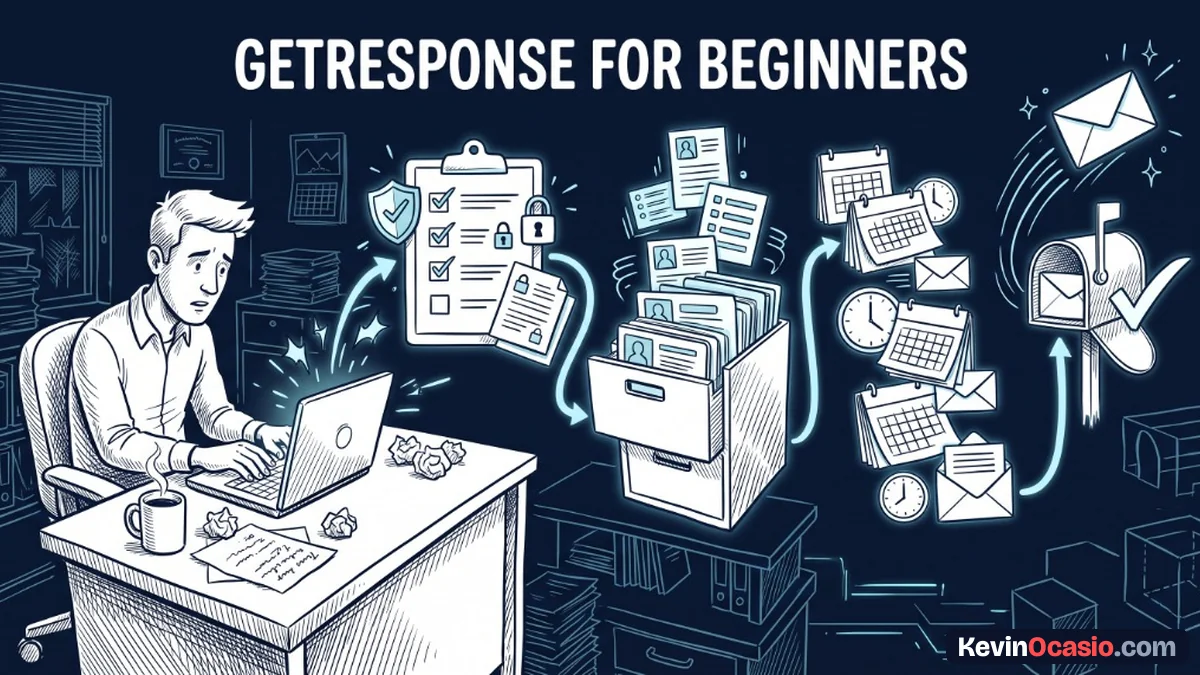
You open a new GetResponse account expecting to send a quick email. You want to get right back to work. Within ten minutes, you hit a wall. You’re staring at domain records, two different menus, and a dashboard loaded with tools you never asked for.
The Short Version
- GetResponse packs serious marketing tools for a fair price, but day-one setup brings real friction.
- Add your domain records first so big inbox providers don’t dump your notes into the junk folder.
- Use basic calendar autoresponders instead of visual workflows until your list makes sales.
Jump to Section
- The Day-One Setup Maze Inside Your Dashboard
- Why Is GetResponse Easy for Beginners on Paper but Hard in Practice?
- The Autoresponder vs Marketing Automation Trap
- Lists, Tags, and Contact Import Friction
- How to Get Up and Running Without Losing Your Mind
- Pick the Right Email Tool for Your Actual Business Stage
- Frequently Asked Questions About GetResponse for Beginners
The Day-One Setup Maze Inside Your Dashboard
Logging in feels like stepping into a cockpit when you just wanted to ride a bike. The main menu throws tools at you for everything. You see landing pages, webinars, funnels, paid ads, and live chat right on your screen.
If you just want to collect emails and send weekly notes, this huge menu gets in your way. When software throws thirty choices at you before your first test email, excess cognitive load slows you down. Simple tasks turn into a chore.
You can easily waste your first three hours clicking around tools you don’t need yet. You don’t need a webinar room or an AI site builder when you have zero readers. You just need a simple signup box. You need one clear email that reaches the inbox.
Why Is GetResponse Easy for Beginners on Paper but Hard in Practice?
Sales pages love to claim that email marketing is fast and simple. They tell you to just point, click, and send. The reality hits you the moment you try to send from a free webmail inbox.
Google and Yahoo now block marketing mail sent from free personal accounts. Sending a blast from an @outlook or @gmail address will bounce right away. It lands in spam or disappears. Skipping custom domain setup is one of the classic new blogger mistakes that stops your site cold.
To fix this, you must own a real domain and add DNS records inside your registrar. You must copy TXT and CNAME values for SPF and DKIM into your DNS settings, then wait for servers to update. That isn’t hard once you know the steps, but it catches beginners off guard on day one.
The Autoresponder vs Marketing Automation Trap
Once your domain records clear, you’ll open the menu to build a welcome email. That’s where you run into a confusing naming trap.
Your dashboard shows two separate tools called Autoresponders and Automation. They sound like the exact same thing when you’re starting out. In reality, they run on two totally different setups.
Autoresponders are basic emails sent on a simple calendar schedule. You write an email for day zero when someone joins. You write another note for day two, and a third note for day four. That simple drip is all most beginners need to welcome new readers.
Marketing Automation is a visual flowchart canvas with custom logic splits and triggers. On the $19/mo Starter plan for this email autoresponder, you only get one custom automation workflow. If you build a branching web of triggers, the system blocks you and asks for $59 a month on the Marketer plan. Stick to basic Autoresponders and you’ll save both time and cash.
Lists, Tags, and Contact Import Friction
Organizing your subscribers inside GetResponse also brings a hidden cost trap on day one.
Modern tools use one main list with tags, but GetResponse still uses separate list buckets. If someone joins your checklist on List A and later joins your newsletter on List B, GetResponse counts them as two contacts. Because your starter plan caps you at 1,000 contacts for $19 a month, duplicate records push you into higher pricing tiers too fast.
Uploading an existing email list can also trigger an account hold. Even if you only import two hundred names from an old site, compliance filters will pause your account. Staff must check your opt-in source before you can send. That blocks spammers, but it stops your progress on your first afternoon.
Here’s a side-by-side look at what beginners expect on day one versus what GetResponse actually asks you to do.
| Setup Task | What Beginners Expect | Day-One Platform Reality | Time to Fix |
|---|---|---|---|
| Sender Address | Send from a free personal Gmail account | Requires verified custom domain with SPF and DKIM DNS records | 30 to 45 mins |
| Welcome Drip | Drag-and-drop flowchart builder on any plan | Visual builder capped at 1 workflow on Starter ($19/mo) | 15 to 20 mins |
| List Organization | Unlimited separate lists for free | Duplicate contacts across multiple lists count twice toward your 1,000 subscriber cap | 10 mins |
| Contact Imports | Instant upload of existing subscriber files | Uploads face review holds that can pause sending for hours | 1 to 24 hours |
| Dashboard Navigation | Simple email composer and subscriber counter | Full dashboard packed with webinars, chats, websites, and sales funnels | 20 mins |
How to Get Up and Running Without Losing Your Mind
You don’t have to let these day-one hurdles derail your project. You can clear all of them in an afternoon if you take them in order.
Lock down your domain records first before you touch an email template. Once your domain shows a green badge in your account settings, your sending reputation is safe. Your messages will land in real inboxes.
Keep your setup clean with a single master list. Use custom fields or simple tags to track where people joined. That stops duplicate records from eating up your contact cap.
Head straight to the Autoresponders tab once your list is ready. Write a simple three-part welcome series and turn it on. Skip the visual automation canvas until your site makes sales and needs advanced cart triggers.
Pick the Right Email Tool for Your Actual Business Stage
GetResponse is a solid platform that gives you room to grow as your sales increase. I cover its long-term delivery and pricing tiers in the complete GetResponse breakdown.
If you want an all-in-one hub with webinars and landing pages alongside your emails, the $19 starter plan gives you plenty of power for the price. Just be ready to spend your first day doing real DNS setup rather than writing quick emails.
When you only need a lean newsletter tool to send updates to a small audience, you can check the best email marketing platforms for solopreneurs before picking one. The best setup is the one you can run without fighting your dashboard every time you sit down to write.
Frequently Asked Questions About GetResponse for Beginners
Does GetResponse have a forever free plan for beginners?
No. GetResponse ended its old 500-contact free plan. You get a 30-day trial, then pay $19 a month for up to 1,000 contacts.
Can I use a free Gmail address to send emails in GetResponse?
Personal webmail won’t work anymore. Google and Yahoo block marketing email sent from free accounts. You must use a custom domain with verified SPF and DKIM records.
What is the difference between Autoresponders and Automation in GetResponse?
Autoresponders send simple emails based on a calendar schedule, such as an email sent right away and another two days later. Automation is a visual flowchart builder that reacts to user clicks or purchases.
How many contacts do I get on the GetResponse Starter plan?
The Starter plan begins at $19 a month for up to 1,000 contacts with unlimited sends. Your price goes up as your list grows past that limit.
Do duplicate contacts count twice against my GetResponse subscriber limit?
Yes. If someone joins two different lists in your account, GetResponse counts them as two separate contacts. You should use tags within one list so you don’t pay extra.
Why was my contact import put on hold by GetResponse?
GetResponse uses safety tools to check imported contact lists. If you upload a file of names, staff may hold it until you confirm how leads opted in.
Is GetResponse beginner friendly compared to other email tools?
It has a clean interface, but it includes many advanced features that can confuse a beginner. Once you set up your domain and stick to basic autoresponders, it runs smoothly.