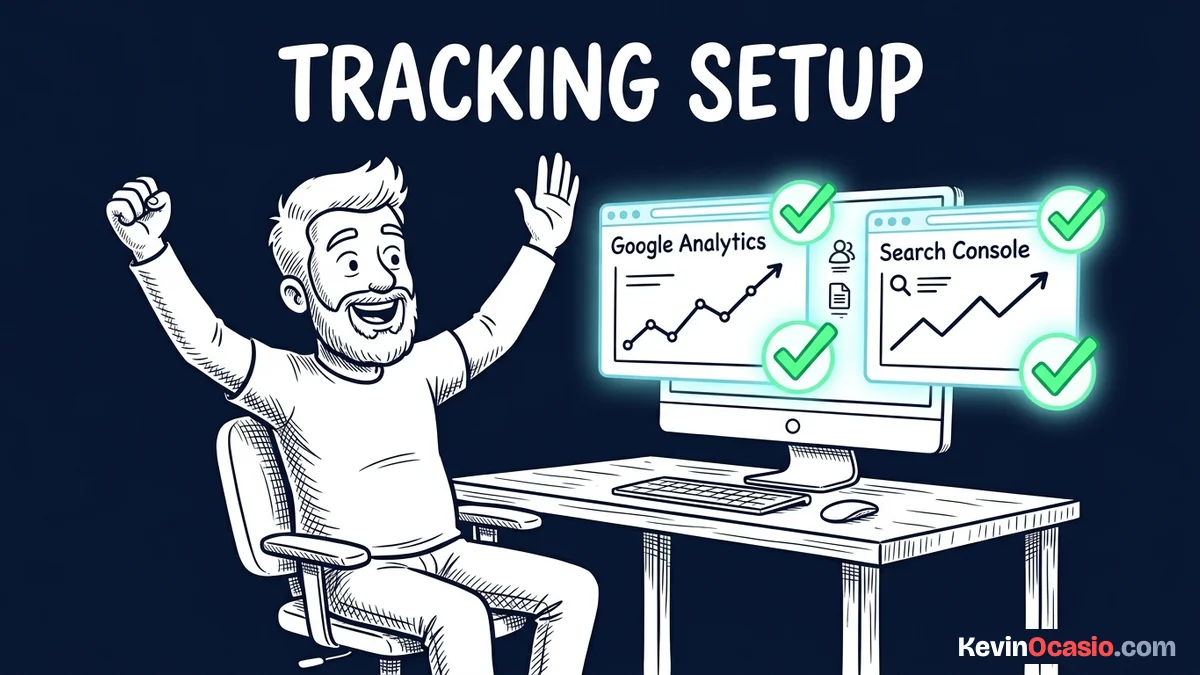
You publish your first few posts on a new WordPress site and wonder if anyone is reading them. Without basic tracking, you have no way to know where people come from or what they do on your pages.
The Short Version
- Connect both Google tools early to capture search ranks and visitor data from day one.
- Skip bulky tracking plugins and paste your tag into your site header to keep pages fast.
- Verify your domain property through your DNS records so theme updates never break your setup.
Jump to Section
- Why You Need Both Google Tools on Day One
- Set Up Google Analytics on WordPress Without Slow Plugins
- The Fast Way to Set Up Google Analytics, Search Console, WordPress Tracking
- Submit Your XML Sitemap and Test Live URL Indexing
- Protect Your Tracking Data and Site Speed Over Time
- Frequently Asked Questions About Google Analytics and Search Console
Why You Need Both Google Tools on Day One
It’s easy to think Google Analytics and Search Console do the same job. In truth, they track two different parts of your website path. One watches search results, while the other watches on-site visits.
Search Console tracks how Googlebot sees your web pages. It shows which search terms bring impressions, where your URLs rank, and if your pages have indexing bugs. You won’t find search impressions inside your visitor logs.
Your GA4 tag takes over once someone clicks through to your post. It records how long readers stay, how far they scroll down, and if they click your links. Together, both tools show you the full path from a search click to a sale.
Waiting until you get big traffic numbers is a mistake. Google doesn’t collect backdated logs. If you wait months to turn on tracking, you lose all the early feedback that tells you which topics work.
Set Up Google Analytics on WordPress Without Slow Plugins
Setting up your Google Analytics 4 property takes five minutes. Head over to Google Analytics and make a free account under your main email. Name your property after your website, pick your time zone, and select your currency.
From there, open the Data Streams tab and create a new Web stream by typing in your domain. Google gives you a Measurement ID that starts with the letter G. Keep this tab open while you grab your code snippet.
You might be tempted to install big plugins like MonsterInsights or Site Kit to paste this code. These plugins run heavy PHP scripts, add extra database calls, and clutter your admin menus with charts. You don’t need a heavy plugin just to send page hits to Google.
The clean fix is to paste the official Google tag script straight into your site header. You can drop it into your child theme header or use a simple snippet tool. When you keep heavy dashboards off your site backend, your pages load much faster on mobile phones.
The Fast Way to Set Up Google Analytics, Search Console, WordPress Tracking
Once your analytics tag is live on your pages, you need to claim your site inside Google Search Console. Open Search Console and click the button to add a new property. You’ll see two choices: a Domain property or a URL-prefix property.
Always pick the Domain property option when you can. A Domain property covers your entire address, including secure links and any subdomains you add later. It gives you a complete view of all search traffic under your name.
Verifying a Domain property takes a simple DNS TXT record inside your domain host. Copy the text string from Search Console, log into your domain registrar or DNS host, and save the verification value in your DNS records. This record lives with your domain, so your verification stays active even if you change your theme.
If you can’t access your domain settings, verify a URL-prefix property instead. You can add an HTML meta tag to your header or place your key inside your SEO plugin. This works fine for beginners, but it only tracks the exact URL format you type in.
After both properties are live, link them together inside Google Analytics. Open your GA4 Admin page, scroll down to Product Links, and click on Search Console Links. This simple bridge lets you view your top search queries right next to your visitor counts.
Submit Your XML Sitemap and Test Live URL Indexing
Verifying your site tells Google who you are, but a sitemap tells Googlebot where your posts live. An XML sitemap is a list of every public page on your site. If you follow my guide on how to start a blog, your SEO plugin makes this map for you.
Open Search Console, click on Sitemaps on the left side, and enter your sitemap file name. On most setups, the path is simply sitemap_index.xml. Click submit, and Google puts your site into its crawl list.
Submitting your sitemap doesn’t mean your posts show up in search results right away. Googlebot has to visit the links, read the text, and decide where your content fits. For a fresh site on a new domain, getting your first posts indexed takes a few days to two weeks.
When you publish a key post, paste the full URL into the top search bar in Search Console to check its status. If the page isn’t indexed yet, click the Request Indexing button. This puts your post into a priority line so Googlebot visits your page faster.
Here is how a clean manual setup compares to running heavy tracking plugins on your server:
| Setup Feature | Heavy Analytics Plugins | Clean Code and DNS Setup |
|---|---|---|
| Admin Speed | Slows down with background queries | Zero impact on admin dashboard speed |
| Database Load | Stores transient data in local tables | Zero extra database queries or rows |
| Setup Stability | Breaks if plugin gets deactivated | Permanent verification via domain DNS |
| Software Cost | Pushes expensive annual upgrades | 100% free with official Google tools |
| Page Performance | Loads extra scripts and styling files | Loads only the single asynchronous tag |
Protect Your Tracking Data and Site Speed Over Time
Setting up your tracking tools is only half the work. You also need to keep your numbers clean so your traffic stats show real readers instead of your own test clicks. Every time you edit a post or check a sales page, Google logs your visit unless you block your IP address.
Open your Google Analytics Data Stream settings, click on Configure Tag Settings, and find the internal traffic tool. Put your home IP address into the filter box. This keeps your bounce rates and read times accurate as you grow.
Check your Search Console stats once a week to spot posts that get impressions but few clicks. Those pages tell you that Google likes your topic, but your title needs a better hook. Compelling titles get readers to click, but you also need reliable, fast web hosting so your pages load quickly before visitors bounce.
If you want to turn that search traffic into real income, read my full guide on how to build an online business with WordPress. To see how fast hosting keeps your pages snappy under load, check out the full Hostinger breakdown. Taking thirty minutes today to wire up your tracking tools gives you the clear data you need to grow your digital asset with confidence.
Frequently Asked Questions About Google Analytics and Search Console
Do I have to pay to use Google Analytics or Search Console?
Both tools are 100% free. You never have to pay a fee or buy an upgrade to access your complete search and visitor data.
How fast does Google Analytics show visitor data?
You can see live visitors right away inside the Realtime report. Standard reports take 24 to 48 hours to process full visitor counts.
Can I use Google Site Kit instead of manual code?
Site Kit works for beginners, but it adds extra code to your admin. Adding your tag manually keeps your site light and fast.
Why is my new WordPress site not showing up on Google?
New sites take a few days to several weeks for Googlebot to find and index. Submitting your XML sitemap speeds up this wait.
What is the difference between a Domain property and a URL prefix?
A Domain property tracks all versions of your site using one DNS record. A URL-prefix property only tracks the single URL format you enter.
Will adding Google tracking code slow down my website?
The Google tag loads in the background and doesn’t block page content. As long as you skip heavy plugins, your site stays fast.
Do I need to verify Search Console again if I change themes?
If you verify with a DNS record at your domain host, your setup stays active forever. An HTML tag must be re-added to a new theme.