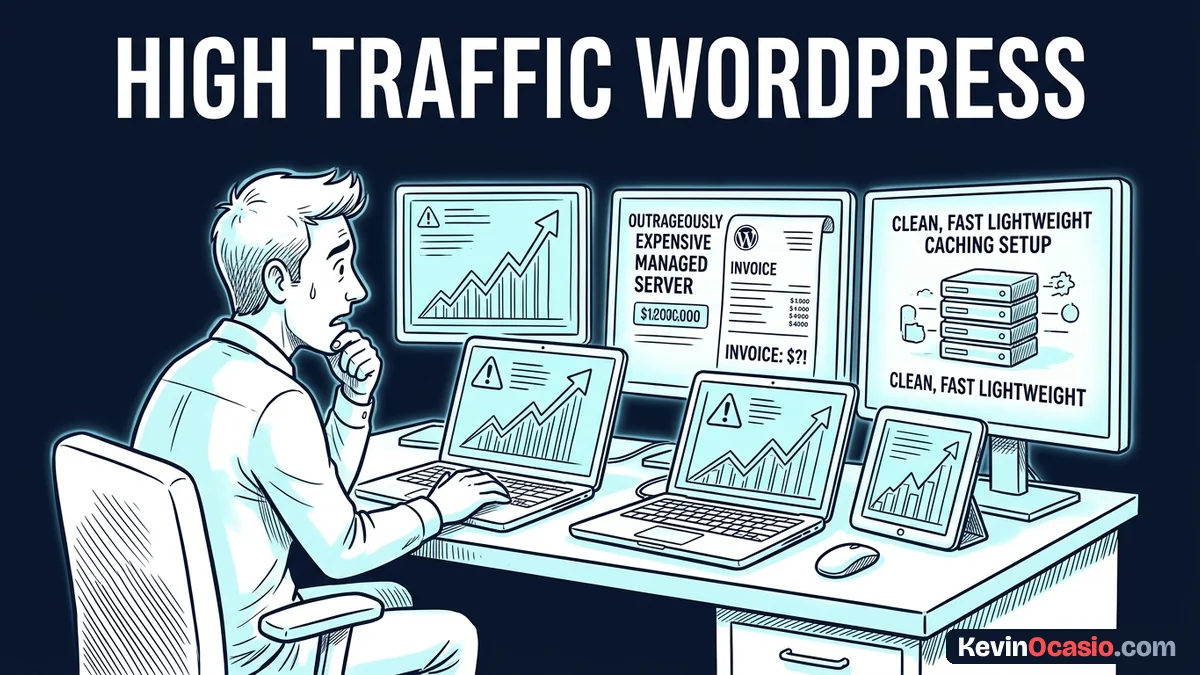
A viral post sends ten thousand people to your site in one hour. Your screen freezes and shows a nasty server error. Most site owners think they must spend $150 a month on fancy hosting. That’s a total waste of cash.
The Short Version
- Static edge caching handles massive surges by serving flat files so your web server stays idle.
- Offload heavy images and media to free cloud networks to cut data strain and stop page crashes.
- Pick clean lightweight themes and drop heavy plugins so your database runs fast on a cheap budget host.
Jump to Section
- The Bottleneck Isn’t Bandwidth, It’s Uncached PHP Requests
- Keep a High-Traffic WordPress Site Fast with Static Edge Caching
- Offload Bulky Media and Block Wasteful Crawlers
- Audit Heavy Plugins and Database Chatter
- Turn Traffic Spikes into Profit Instead of Server Errors
- Frequently Asked Questions About Keeping a High-Traffic WordPress Site Fast
The Bottleneck Isn’t Bandwidth, It’s Uncached PHP Requests
Every time someone visits a standard WordPress page, the server builds it from scratch. It runs PHP code and asks the database dozens of questions. That takes only a second for one visitor, but a sudden rush brings the server to a dead stop.
Budget hosting accounts don’t crash from raw traffic volume. They crash because they run out of active PHP workers. A basic $5 or $10 shared plan gives you only two to four workers. If twenty people hit dynamic pages at once, the line backs up and the server drops the connection.
I see people throw money at the problem the moment they hit their first big traffic surge. They rush to buy a pricey cloud plan with more power and memory. Buying more server power to run uncached pages is a mistake. It’s like buying a bigger bucket instead of fixing a leak.
You can keep your monthly bills under ten dollars with one simple change. Turn your pages into ready-made static files. Then your host doesn’t have to touch PHP or the database for normal readers. That shift lets a cheap hosting account handle huge traffic spikes without slowing down.
Keep a High-Traffic WordPress Site Fast with Static Edge Caching
Page caching fixes the worker bottleneck by saving the finished HTML of your posts to disk. The very first visitor triggers the database call, and the caching tool saves a flat copy. When the next nine thousand people click the link, the server acts fast. It hands them the static file without running any PHP code.
Edge caching takes this protection one step further by moving those static files away from your origin server completely. When you connect your domain to Cloudflare, your pages sit in cities all over the world. A reader loads the page from a local edge server near their home, so your host never feels the hit.
To get the best speed, turn on browser caching for your static files. That way, returning readers pull styles directly from phone memory. When your edge cache hit ratio climbs above 95 percent, your web server only sees a trickle of requests. That’s how solo creators run busy blogs on reliable web hosting for under five bucks a month.
Setting this up doesn’t take complicated tech skills or custom code. Most modern web hosts include built-in server caching tools right in your control panel. Turn those switches on. Pair them with basic edge rules so your pages load almost instantly.
Offload Bulky Media and Block Wasteful Crawlers
Heavy image files quietly drain your server power during traffic surges. If a post has four big camera photos, every visitor pulls twelve megabytes of data. A sudden rush of readers burns through your limits and slows down your site.
Resize every photo to match your content layout before you upload it to your media library. Keep all your featured images at 1200 by 675 pixels and compress them under one hundred kilobytes in WebP format. Tiny image files load fast on mobile devices. They put almost zero strain on your hosting account.
Another silent drain on budget hosting is the endless swarm of bad bots. Scraper tools, rogue search crawlers, and automated scripts constantly hit WordPress sites looking for login screens. These junk visits eat up server memory just like real human visitors.
Put a free firewall rule in front of your domain to block known scraper bots. Filter out spam networks, and limit internal search requests. Stopping bad traffic before it reaches your hosting server protects your resources for real readers and buyers.
Audit Heavy Plugins and Database Chatter
Even with great caching, heavy plugins can drag down your site speed. Add-ons that track page stats or check broken links create constant work. Every visitor click forces your database to search cluttered tables and run extra queries.
Stick to a minimalist marketing setup that relies on clean code. Ditch clumsy visual page builders that add thousands of lines of junk code. Build on a lightweight WordPress theme that loads in milliseconds. Clean code keeps your database small and lets your server breathe.
Regular maintenance keeps your site running fast as your traffic grows. Clear out old post revisions, delete spam comments, and remove expired transient data once a month. That kind of database clutter is a big reason why your website is slow. Letting old rows pile up in your database slows down every single query your site makes.
When your traffic outgrows basic shared plans, consider mid-tier cloud options. Upgrading to SiteGround hosting gives you built-in caching and faster hardware to handle higher visitor numbers. You get a huge speed boost while keeping monthly costs low.
Here is how an expensive managed hosting plan compares to running a lean, edge-cached WordPress site on a budget:
| Performance Factor | Expensive Managed Hosting | Lean Edge-Cached Stack |
|---|---|---|
| Monthly Cost | $150 to $300 every month | $5 to $15 every month |
| Traffic Surge Handling | Relies on expensive server hardware | 95%+ edge cache hit ratio |
| Media Delivery | Origin disk handles asset bandwidth | Free CDN offloads images and scripts |
| Theme and Plugin Burden | Clumsy drag-and-drop page builders | Clean code and lightweight themes |
| Crash Risk During Spikes | High risk when traffic floods the database | Near zero since origin stays idle |
Turn Traffic Spikes into Profit Instead of Server Errors
Handling big traffic numbers on WordPress isn’t a mystery. It comes down to one rule: never make your server do work that a static edge file can do for free. Turn on static caching, offload your images, and keep your plugin list lean. Your site stays fast no matter how many people show up.
Take an hour to check your current setup today. Turn on page caching, connect your site to a free CDN layer, and delete plugins you don’t use. When your next big traffic wave hits, your site will stay online. It will load fast and turn new visitors into email subscribers and buyers.
Frequently Asked Questions About Keeping a High-Traffic WordPress Site Fast
Can a cheap shared hosting plan really handle 100,000 monthly visitors?
Yes, a cheap shared plan works great. Just make sure your page caching is turned on. When nine out of ten visitors get static files, your host only handles a tiny trickle of work. That easily stays inside your account limits.
Which free caching plugin works best for WordPress?
If your host runs on LiteSpeed, the free LiteSpeed Cache plugin is your best pick. It links right into server-level caching. On other servers, free plugins like WP Super Cache or W3 Total Cache work great to create flat HTML files.
Does edge caching break dynamic features like shopping carts or contact forms?
No, it won’t break dynamic parts of your site. Modern caching tools skip the cache for logged-in users, carts, and checkout pages. Your blog posts stay fast and cached, while customer checkouts run fresh.
How much memory does WordPress need for high traffic?
A basic plan with 512 megabytes to 1 gigabyte of memory is plenty for a content blog. You don’t need tons of memory if your code is clean. The real secret is stopping database calls before they start.
Do I need a paid CDN to handle traffic spikes?
No, the free Cloudflare plan gives you global edge caching, SSL, and basic firewall rules. You only need paid upgrades if you want advanced image tools or custom traffic routing.
Why does my site still slow down when I use a caching plugin?
The most common cause is heavy background plugins that skip the cache. Tools that track live visitors, check links, or run external scripts will slow down mobile screens even with caching turned on.
How often should I clean my WordPress database?
Cleaning your database once a month is plenty for most busy sites. Clearing out old post drafts, spam comments, and expired transients stops database tables from slowing down daily queries.