Online entrepreneur since 1999.
Building businesses, software, and marketing
funnels that work.
Most people make online business way harder than it needs to be. I build software people actually use and run marketing systems that actually convert.
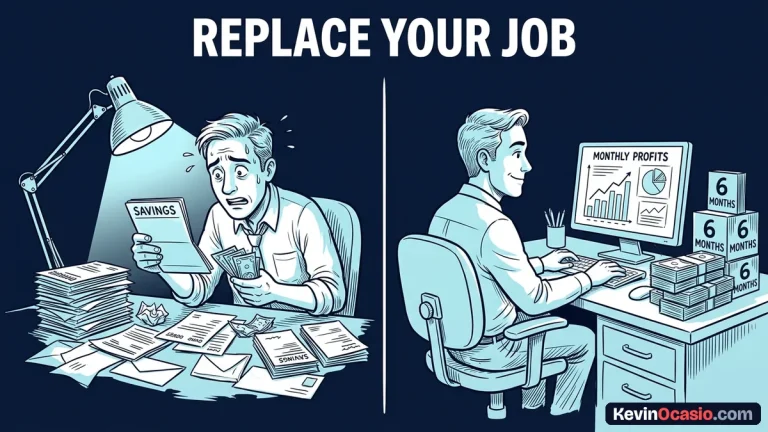
How to Know When Your Side Hustle Is Ready to Replace Your Day Job
Learn the exact math and financial runway you need before quitting your job, including real self-employment taxes, health insurance costs, and the six-month profit rule.

How to Build a Daily Routine That Actually Moves Your Business Forward
Discover how to build a daily routine for online business that protects your morning focus, eliminates reactive busywork, and ships real assets before noon.
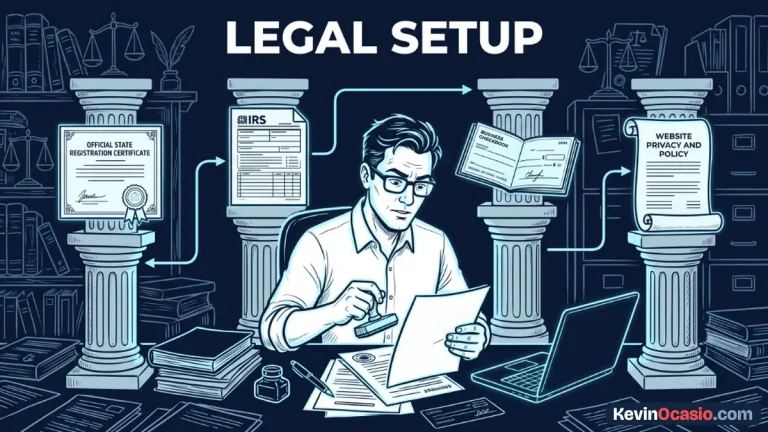
How to Set Up Your Online Business Legally Without a Lawyer
You don't need to spend thousands on a lawyer to set up your online business legally. Here is how to register an LLC, get an EIN, and protect your personal assets.
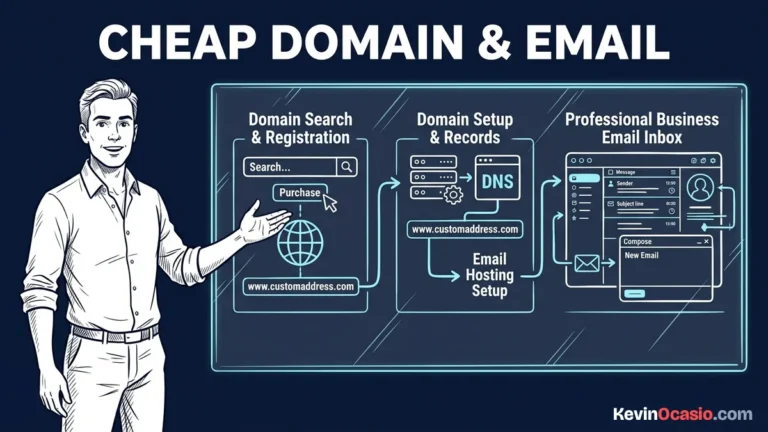
How to Get a Professional Domain and Business Email for Under $15 a Year
Learn how to register a clean custom domain and set up a professional business email for under $15 a year without paying for expensive monthly software seats.
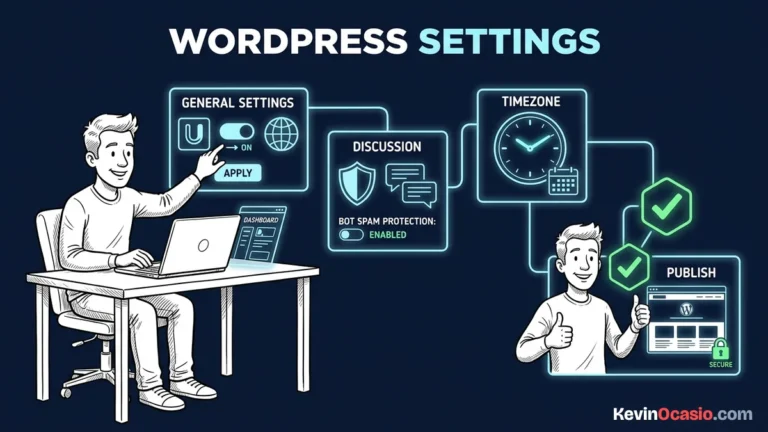
The First 10 Settings to Change After Installing WordPress
Here are the first 10 settings to change after installing WordPress to secure your site, fix your permalinks, and stop comment spam before publishing.
How to Set Up Google Analytics and Search Console on a New WordPress Site
Learn how to set up Google Analytics and Search Console on a new WordPress site cleanly without slow plugins to track traffic, keywords, and indexing.
Hostinger vs SiteGround: Budget Value or Premium Managed Speed?
Comparing Hostinger and SiteGround comes down to long-term renewal math and your daily workflow. Here is how both hosts stack up on real speed and value.
Best ClickFunnels Alternatives: 5 Cheaper Funnel Builders
Five cheaper funnel builders matched to the one job you need done: a free all-in-one, a lifetime checkout cart, a WordPress plugin, a simple page builder, and an email tool with funnels built in.
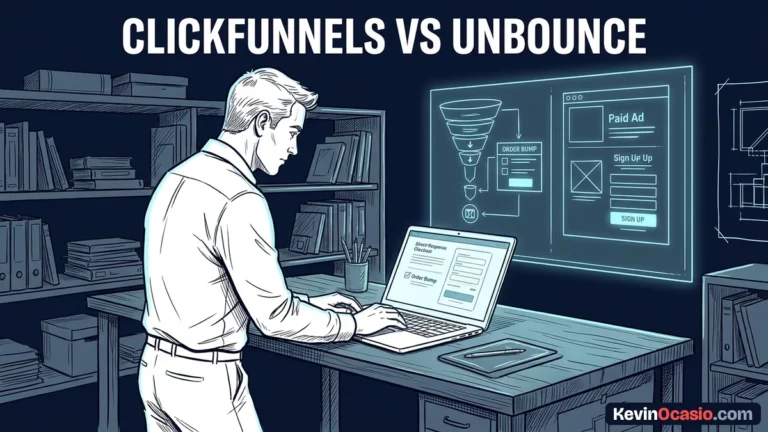
ClickFunnels vs Unbounce: Full Checkout Funnels or Dedicated Landing Pages?
ClickFunnels gives you a complete checkout funnel with upsells, while Unbounce builds high-end paid landing pages with dynamic text and AI traffic routing.
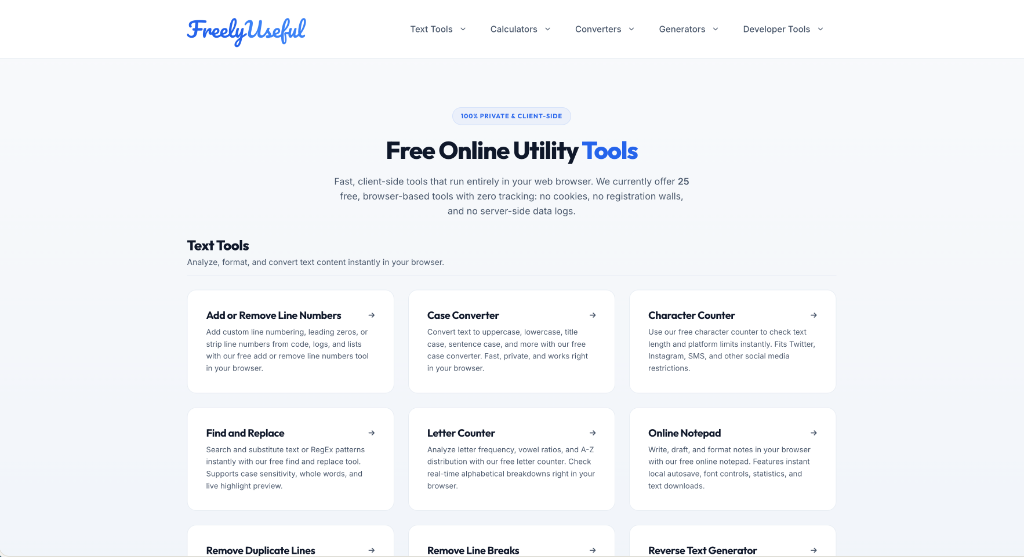
FreelyUseful.com
A collection of simple, fast web tools for daily tasks like formatting text, converting units, and crunching numbers. Everything runs right in your browser with zero tracking or sign-ups.
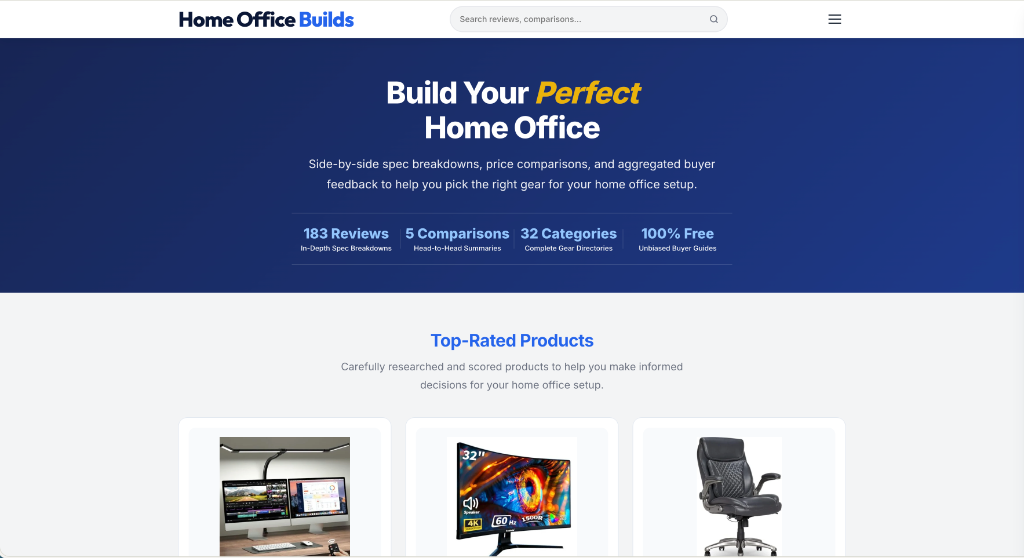
HomeOfficeBuilds.com
Finding good home office gear takes forever. This site stacks up desks, chairs, monitors, and accessories side by side so you can pick the right setup without wasting hours.
Fast Cloud Uptime & Speed
Reliable hosting that keeps your website fast and online 24/7 so you never miss a visitor or lose a sale.
Instant 1-Second Page Loads
An ultra-fast theme that opens instantly on every device so visitors stay on your page and never bounce.
Automated Sales & Newsletters
The simple way to build a list of eager buyers and send automated emails that make sales while you sleep.