Nothing drops your stomach faster than typing your domain name and seeing a blank screen. When your website goes down, you lose sales and break checkout links. You risk losing months of hard work in seconds.
The Short Version
- Separate your website backups by saving daily copies to remote cloud storage outside your web host.
- Turn off automatic major updates by locking WordPress to minor security patches so new versions don’t break plugins.
- Keep total plugins under twenty and test every update on a staging copy before touching your live site.
Jump to Section
- The Fatal Mistake of Leaving Backups on Your Web Server
- How to Protect WordPress Site from Crashing on Major Updates
- The Plugin Diet and One-Click Staging Workflow
- How to Recover When a Bad Plugin Knocks Your Site Offline
- Set Up Your Safety Net Before Your Next Traffic Spike
- Frequently Asked Questions About Site Crashes and Backups
The Fatal Mistake of Leaving Backups on Your Web Server
You might think you’re safe because your control panel has a backup button. You click it once a month and see a saved file. You assume your hard work is safe. That false comfort vanishes the second your server disk fails or bad code corrupts your files.
If your backup file lives on the same disk as your website, you don’t have a backup. When that server goes down, you lose the live site and the backup file together. Keeping both in one spot leaves your whole business open to a single hardware crash.
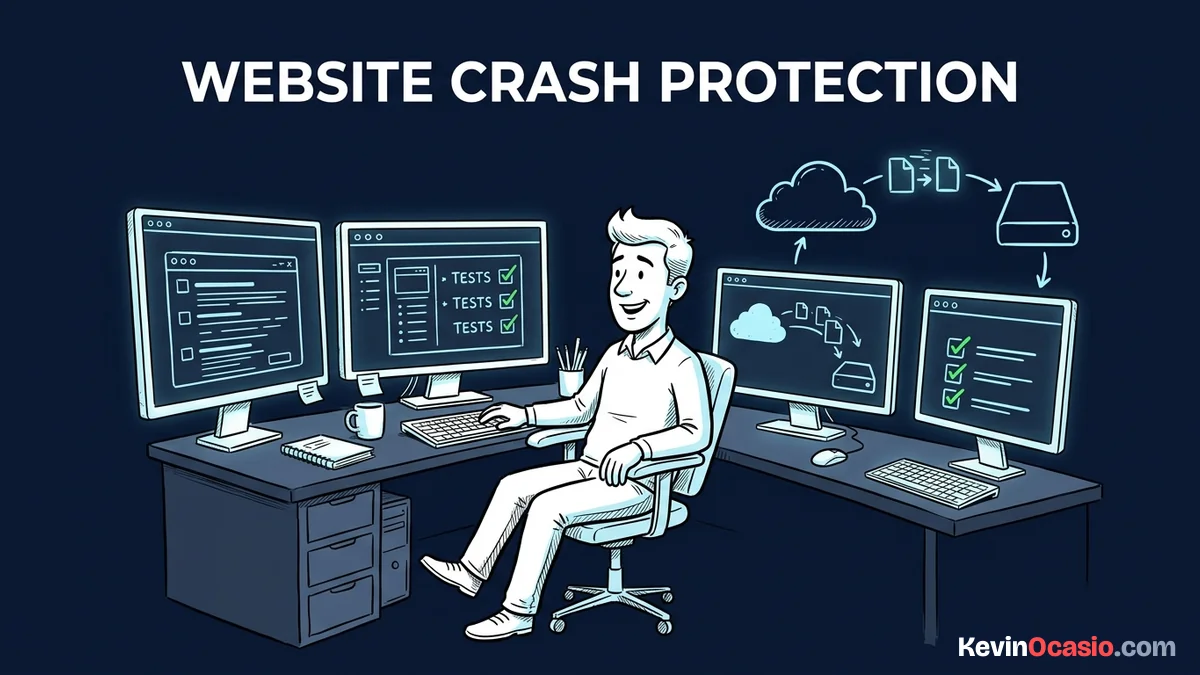
Real data safety follows a clear rule. Keep three copies of your data on two different storage types. Make sure one copy stays offsite. Setting up offsite disaster recovery lets you keep a fresh copy outside your main server for free.
You can install a free plugin like UpdraftPlus and connect it to Google Drive or Dropbox. Every night at midnight, the tool packs up your database and media files. It sends those files straight to your remote cloud drive. If your web host deletes your account by mistake, you still own every post you ever wrote.
How to Protect WordPress Site from Crashing on Major Updates
WordPress pushes updates often. These updates carry different levels of risk. Minor updates, like version 6.8.1 to 6.8.2, only fix bugs and patch security holes. You want these small safety fixes to install right away.
Major updates are a whole different story. When WordPress jumps from 6.8 to 6.9, developers rewrite core code and editor tools. If an older plugin doesn’t match those changes, your site crashes. The crash happens the second the update finishes.
You don’t want big updates running while you sleep. Tell WordPress to install safety fixes while holding back major releases. Add one line to your wp-config.php file: define(‘WP_AUTO_UPDATE_CORE’, ‘minor’);
This single line keeps your site safe without causing a sudden crash. Running a minimalist marketing setup helps too. Fewer third-party scripts will fight each other when new code drops.
The Plugin Diet and One-Click Staging Workflow
Every plugin you add loads extra code on each page visit. Stacking thirty plugins together builds a messy pile of competing scripts. Two plugins running the same task can knock your server offline fast.
Keep your active plugins under twenty. Before you hit install on any new tool, take five minutes to audit the plugin and read its support threads. If a plugin hasn’t been updated in six months, skip it.
When you update tools, never test them on live visitors. Always run your tests inside a private staging clone. On a staging site, you can update tools and check forms without risking sales.
Reliable web hosting gives you a one-click staging tool and daily snapshots. A host like Hostinger lets you run updates on a separate copy without touching your live pages. You push changes only after testing.
Here is how a weak default setup compares to a protected stack:
| Setup Feature | Vulnerable Default Setup | Protected Production Stack |
|---|---|---|
| Backup Storage Location | Stored on the same web server | Sent to remote cloud storage daily |
| Core WordPress Updates | Major versions update automatically | Locked to minor security patches only |
| Active Plugin Count | 30+ plugins with duplicate tools | Under 20 lean, audited plugins |
| Update Testing Workflow | Tested directly on live visitors | Tested on a private staging clone first |
| Crash Recovery Method | Hours spent panicking and guessing | Quick folder rename or one-click rollback |
How to Recover When a Bad Plugin Knocks Your Site Offline
If an update breaks your site, stay calm. Your database is still safe. All your posts, images, and pages remain on the server disk. The system just hit a fatal code error that stopped the page from loading.
You can fix this issue without your WordPress dashboard. Log straight into your hosting account and open your File Manager tool. You can also connect to your site using a free SFTP tool like FileZilla. Open the wp-content folder and click into the plugins directory.
Find the folder of the plugin you just updated. Right-click that folder and add -disabled to its name. WordPress will fail to find the broken script, turn off the plugin, and let you log back into your admin dashboard.
Turn on error logging when you aren’t sure which tool broke your site. Open your wp-config.php file and set WP_DEBUG and WP_DEBUG_LOG to true. Refresh the broken page once, then check debug.log in wp-content to see the exact file causing the crash.
Set Up Your Safety Net Before Your Next Traffic Spike
Protecting your website doesn’t take complex code or high monthly bills. It just takes a basic safety net in place before something breaks.
Take twenty minutes today to secure your site. Connect a free backup tool to your personal cloud drive. Add the minor update line to your config file, and delete unused plugins. These simple moves keep your content safe so you can focus on building your business.
Frequently Asked Questions About Site Crashes and Backups
What is the most common reason a WordPress site crashes?
Most crashes happen right after a plugin or theme update. New code often clashes with older tools or the core platform. Stacking too many heavy plugins can also overload your server and take pages offline.
How often should I back up my WordPress site?
If you publish new posts, collect email leads, or sell products every day, you need daily backups. Daily offsite copies give you peace of mind. Sites that rarely change can back up once a week.
Can my web host restore my site if my files are lost?
Many web hosts take daily server snapshots. Still, you should never rely on them as your only safety net. If your account gets locked or deleted by mistake, those host copies vanish too.
What should I do if an update breaks my live site?
Log into your host control panel and open File Manager. Open the wp-content/plugins folder and add -disabled to the name of the plugin you just updated. This turns off the broken tool right away and restores your dashboard.
Is it safe to turn on automatic updates for all plugins?
No, automatic updates for complex plugins often lead to downtime. It’s safer to read update notes and test changes on a staging site first. That way, you catch broken pages before your visitors do.
How many plugins are too many for a stable website?
A good rule of thumb is keeping active plugins under twenty. Stick to fast, simple tools that do one job well. Heavy multi-purpose tools slow down your site and raise the risk of code conflicts.