WordPress lets you add new tools with one click. But installing plugins without checking them first is the fastest way to break your site. Knowing how to evaluate a wordpress plugin before you hit install keeps your site fast, safe, and online.
The Short Version
- Check the update log and user ratings in the WordPress directory before you hit install.
- Inspect frontend files with browser tools to stop plugins from loading heavy code on every page.
- Test inside a sandbox so you can spot database bloat and PHP errors before code goes live.
Jump to Section
- Check the Repository Track Record and Update Frequency
- Inspect Global Asset Loading and Frontend Weight
- Audit Database Hygiene and Autoload Footprint
- How to Evaluate a WordPress Plugin in a Local Sandbox
- Run Your Staging Audit Before Hitting Activate
- Frequently Asked Questions: How to Evaluate a WordPress Plugin
Check the Repository Track Record and Update Frequency
Every plugin you add runs code directly on your server. When you install an old tool with no updates in six months, you invite bugs and open security holes. Vetting plugin code before you hit activate helps you weed out bad add-ons early.
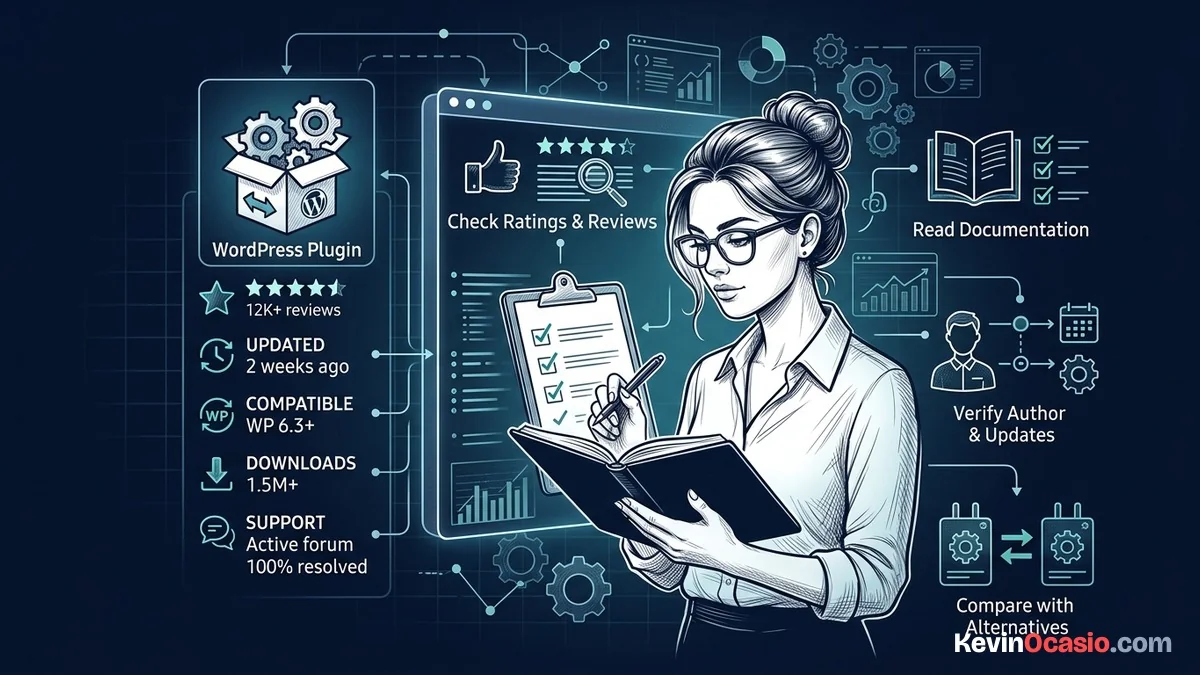
Start your check on the official WordPress plugin page. Look at the active install count, the latest update date, and the star ratings. If a plugin has fewer than a thousand installs or lacks updates for recent WordPress releases, walk away.
Click the support tab on the listing to see how the creator treats users. Look for open threads with no replies over the past ninety days. If the author ignores bugs, the plugin is dead. You do not want to run your business on dead code.
Most WordPress security breaches happen through unpatched plugins. Automated bots scan sites every day to trigger critical security exploits against known bugs. Good coders fix flaws fast and post clear changelogs.
Inspect Global Asset Loading and Frontend Weight
Sloppy plugins load their CSS and JavaScript on every page of your site. A contact form script has no business running on your homepage or inside blog posts.
You can spot this bloat fast with browser developer tools. Open your site in a private window and right-click to inspect the page. Click the Network tab, reload, and filter by JS and CSS to see what loads.
Watch out for plugins that load heavy files on pages where the tool does nothing. Three bad plugins can easily add hundreds of kilobytes to your site. That extra weight kills your mobile speed.
Pairing your site with a lightweight WordPress theme gives you a fast start. But bad plugins wipe out that speed instantly. This is why simple software beats complex software every time. Clean plugins only load scripts on pages where you actually use them.
Audit Database Hygiene and Autoload Footprint
What a plugin does to your database matters just as much as what it loads on the screen. Many plugins write settings rows into your options table and set them to load on every single page hit.
WordPress flags a warning in Site Health when autoloaded options pass eight hundred kilobytes. Bloated plugins that store giant caches or log files can push that number past three megabytes. That extra weight makes your database drag.
Check how cleanly a plugin removes its data when you delete it. Bad plugins leave behind junk rows and extra tables after you turn them off. That leftover junk builds up over time and slows down your database queries.
How to Evaluate a WordPress Plugin in a Local Sandbox
Never test a new plugin on your live site. Even well-rated plugins can clash with your theme, break your checkout, or throw PHP errors that take your pages down.
Spin up a local test site on your computer with Local WP. You can also make a staging copy on your reliable web hosting account. This gives you a safe space to break things without risking your live sales.
Turn on debug logging in your wp-config file so WordPress writes errors to a log. When you test third-party add-ons in a sandbox, you catch bugs before real visitors see them. Click through your pages and check the log for hidden PHP warnings.
Once you finish your tests, deactivate and delete the plugin. Open your database to make sure the plugin wiped its tables and settings. If a plugin leaves its junk behind, skip it.
Here is how a clean, well-coded plugin compares to a bloated one:
| Audit Check | Well-Built Lean Plugin | Bloated Unvetted Plugin |
|---|---|---|
| Update Schedule | Updated within 30 to 60 days | No updates for 6+ months |
| Asset Loading | Loads scripts only on target pages | Forces CSS and JS on every single URL |
| Database Footprint | Under 20 KB of clean settings data | Megabytes of autoloaded options and logs |
| Uninstallation | Cleans up all tables and rows on delete | Leaves orphaned tables and ghost options |
| Support Activity | Active replies and resolved forum threads | Dozens of unanswered support tickets |
Run Your Staging Audit Before Hitting Activate
Adding plugins to your site should be a deliberate choice. Every extra line of code you run either helps you make sales or slows down your visitors. When you master how to evaluate a wordpress plugin before launch, you take full control of your site.
Taking five minutes to run this check saves hours of headache later. Make it a rule to test in a sandbox, read the changelog, and inspect the network tab before you activate any tool.
Keep your active plugin list short and clean. When you keep your site lean, your pages load fast, your data stays safe, and your visitors stay happy.
Frequently Asked Questions: How to Evaluate a WordPress Plugin
How many plugins can I safely install on my WordPress site?
There is no fixed limit on how many plugins you can run. What matters is code quality, not raw numbers. Ten fast, lightweight plugins run better than one bloated tool.
How do I check if a plugin is slowing down my pages?
Open your browser tools and check the Network tab to see what files the plugin loads. You can also run speed tests before and after turning on the plugin to see the real impact.
Is it safe to use a plugin that hasn’t been updated recently?
Avoid plugins that have not received updates in over six months. Outdated plugins often contain unpatched security flaws and may break when WordPress releases core updates.
What should I look for in a plugin’s changelog?
Look for regular bug fixes, performance improvements, and security patches. A healthy changelog shows the developer actively maintains the codebase.
How do I completely remove a plugin’s leftover data?
Use a database optimization tool to search for orphaned rows and transients left in wp_options. You can also manually drop custom tables created by the uninstalled plugin.