
When customizing a WordPress theme, figuring out which PHP file controls the current page layout can turn into frustrating guesswork. Digging through nested theme directories and child theme folders wastes valuable time. Ocasio Show Current Template lets you show current template in WordPress admin bar with zero setup.
You can inspect active template hierarchy files and included template parts as you browse your live site. This tool is part of my collection of free WordPress plugins built to streamline everyday website building with clean, lightweight code.
- Version: 1.0.0
- Requires WP: 6.0+
- PHP: 7.4+
- Frontend Assets: 0 KB
- License: GPLv2
Why I Built Ocasio Show Current Template
WordPress uses a complex template hierarchy system to choose which PHP file renders each page. Depending on custom post types, categories, taxonomies, and page slugs, your layout might load from single.php, page.php, archive.php, or a custom child theme template.
Switching back and forth between your code editor and browser trying to guess which template file is active slows down your design tweaks.
I built this micro-plugin to put that information right in front of you. It hooks directly into the WordPress template engine, catches the active file, and displays the exact template filename and all loaded sub-parts in your top toolbar.
How to Inspect Active Theme Template Files
Here is how this tool lets you show current template in WordPress frontend pages:
- Instant Admin Bar Node: Displays the active template filename right in your top admin toolbar as you browse pages.
- Relative File Paths: Hover over the admin bar node to see the exact relative path inside your parent or child theme folder.
- Included Template Parts: Lists all included PHP sub-templates loaded on the current page (like headers, footers, and content cards).
- Administrator-Only Access: Protected by permission checks so regular site visitors never see template filenames.
- Zero Frontend Script Weight: Operates entirely on server-side PHP filters with 0 KB of frontend JavaScript or CSS.
- 100% Free & Open Source: Released freely under the GPLv2 license with the full source code on GitHub.
How to Install and Use Ocasio Show Current Template
Setting up template inspection takes less than two minutes:
- Download the Plugin: Download the latest
ocasio-show-current-template.zipfile using the download button above. - Upload & Activate: In your WordPress dashboard, go to Plugins -> Add New Plugin -> Upload Plugin, choose the zip file, and click Install Now -> Activate.
- Confirm Active State: Open Ocasio Plugins -> Dashboard from the WordPress sidebar and verify the Active on Site toggle is switched ON.
- Inspect Your Layout: Visit any frontend page while logged in as an administrator to see the active template filename displayed directly in your top admin bar.
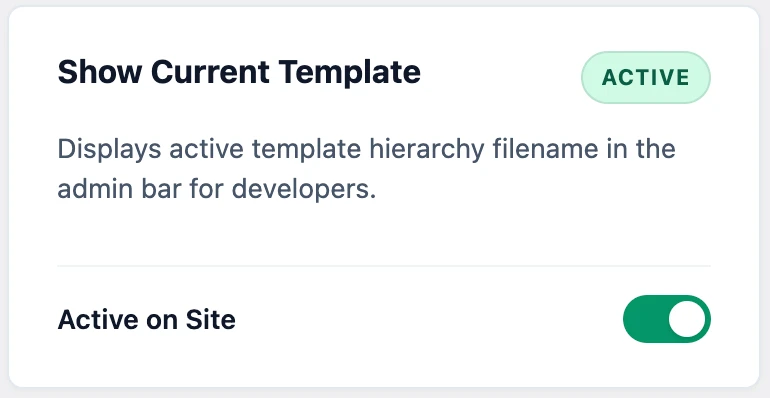
Hover over the template node in your toolbar at any time to view full relative paths and included template parts.
Frequently Asked Questions About Ocasio Show Current Template
Where does the active template name appear?
It appears directly in the top WordPress admin toolbar when you view any frontend page while logged in as an administrator.
Can regular visitors see my theme template filenames?
No. The plugin verifies administrator capabilities before rendering the toolbar node. Regular visitors and logged-out users never see template details.
Does this tool support child theme templates?
Yes. It automatically detects whether a file loads from your child theme or parent theme directory and shows the exact relative file path.
Can I use this plugin on client websites?
Yes. Ocasio Show Current Template is licensed under GPLv2, which means you can install and use it freely on unlimited personal, business, or client websites.